 SmartSoloFlow

Key Takeaway: Choose your pomodoro timer by what you need it to record, not by how many features it lists. A simple browser timer works for most solo days, and automation only pays off once you want sessions logged somewhere you already work.
System Goal: Protect your focus blocks and keep a record of the ones you finish.
Core Framework: Pomodoro Technique (25 minutes on, 5 minutes off)
The best pomodoro timer for a solopreneur is the one that fits how you actually work, not the one with the longest feature list. If notifications keep breaking your focus and you can't say how many real work blocks you finished today, this guide sorts eight apps by the kind of solo work they suit best. You'll see which timer fits a browser-only setup and which one tackles phone distractions. The classic pattern is 25 minutes of focus and a 5 minute break, with a longer break after four rounds. Then I'll cover whether Make.com, a visual automation tool, can log your finished sessions for you, and when that's actually worth the setup time. You'll leave with one app to try this week and a plan. It's written for people who work alone, bill by the hour or the project, and have no manager to hold them to a schedule.
Platform, pricing, and Make.com connection details above were verified at the time of writing, including each app's own site and Make's integrations directory. Apps change these often, so please confirm current details before deciding. TickTick's own help guide shows how to turn on its Pomodoro timer but doesn't say whether it needs a paid plan, while several pricing guides say it does. Check the Settings screen in your own TickTick account to be sure.
- Best Pomodoro Timer Apps for Solopreneurs: The Quick Answer
- How to Pick a Pomodoro Timer for Solo Work
- 1. Toggl Track: Turn Focus Blocks Into Billable Hours
- 2. Pomofocus: A Free Browser Timer With Task Estimates
- 3. Focus To-Do: Tasks and Timer in One Place
- 4. Forest: Keep Your Phone From Wrecking Your Blocks
- 5. TickTick: One App for Tasks, Habits, and Focus
- 6. Session: Add a Reflection to Every Focus Block
- 7. Be Focused: A Plain Timer With a Daily Goal
- 8. Reclaim: Protect the Time Before You Start the Timer
- Which Pomodoro App Should You Choose?
- Automate Pomodoro Session Logging With Make.com
- Do You Need Make.com, or Does Your Timer Already Log?
- How the Automation Works
- Setting It Up
- Pomodoro Timer FAQs for Solopreneurs
- Pick One Pomodoro Timer and Run It for a Week
Success Story: Turning Focus Blocks Into a Billing Record
For example: picture a freelance bookkeeper who works four focus blocks before lunch. Her timer chimes when each one ends, but that's all it does. By Friday she can't say how many hours went to which client, so her invoice numbers come from memory. With a timer that ties each session to a client task, that answer is one report away.
Best Pomodoro Timer Apps for Solopreneurs: The Quick Answer
The best pomodoro timer for most solopreneurs depends on one question: what do you need it to record? Toggl Track fits if you already track billable hours. Pomofocus fits if you want a simple timer in your browser. Forest fits if your phone is the problem. The other five are below.
- Toggl Track: Best if you already bill by the hour. Pomodoro is built into its desktop apps, browser extension, and mobile apps, and it tracks your cycles against the time entries you log.
- Pomofocus: Best for a simple timer in your browser. You can add tasks, and it shows visual reports of your focus time.
- Focus To-Do: Best if you want your task list and timer in one app. It runs on iOS, Android, Windows, Mac, and Chrome.
- Forest: Best if your phone is the distraction. You plant a virtual tree, and it dies if you leave the app before the timer ends.
- TickTick: Best if you want your timer, task list, habits, and calendar in one app. It also has an official Make.com app for task-based automation.
- Session: Best for Apple users who want to note what they learned after each session. It can also mute a Slack workspace while a session runs.
- Be Focused: Best for Apple users who want a plain timer with a task list. It runs on iPhone, iPad, and Mac, and its listing offers sync across them.
- Reclaim: Best if your day runs on your calendar. Its Pomodoro timer is free and shows your countdown right in your browser tab.
Here's how I picked these. I built the list from each app's official pages and feature lists, checked in September 2026, and I haven't run all eight through a full work week. Read each "best for" line as a fit guide, not a lab result.
One more thing before the details. Later I'll cover Make.com, a visual automation tool that connects apps without code, and whether it can log your finished sessions somewhere you actually look. I'll be upfront about which timers make that possible and which don't.
How to Pick a Pomodoro Timer for Solo Work
Pick the timer by what you need it to record. Check four things: whether you can change the 25-minute default, whether sessions attach to tasks, whether it keeps a history you can review, and whether it can quiet notifications. Everything else is polish.
A quick refresher: Francesco Cirillo came up with the Pomodoro Technique in the late 1980s using a tomato-shaped kitchen timer. You work for 25 minutes, take a 5 minute break, and take a longer one after four rounds. Think of it as time blocking in small pieces, a smaller version of our full Time Blocking guide, which is why it fits solo work so well.
- Adjustable intervals. Some days call for 50 minutes, not 25. Toggl Track's Android app offers 10, 25, 55, and 90 minute focus lengths plus custom durations.
- Task linking. Focus To-Do and TickTick both tie a session to a task, and TickTick's timer sits right inside the task you're working on.
- Session history. Session, Pomofocus, and Be Focused all include reports, so you can see which days your focus actually held.
- Notification control. Session can mute a Slack workspace during a session, and Forest blocks other apps, with custom allow lists on its paid Plus tier.
When you work alone, nobody checks whether you protected your focus blocks. The timer becomes the only witness, so what it records matters. Here's how the eight compare at a glance.
Platform details above were verified at the time of writing. Apps add and drop platforms often, so please confirm current availability on each provider's official website before making a decision.
1. Toggl Track: Turn Focus Blocks Into Billable Hours
Toggl Track is the pick for solopreneurs who bill by the hour, because its Pomodoro timer sits inside a time tracker. Each focus block can land on a client project, so your timer and your billing record become the same thing.
What I've noticed is that the hardest part isn't the timer. It's remembering to start it. A pomodoro timer that doubles as your time tracker removes one of those two habits.
The timer is built into Toggl's Mac and Windows desktop apps, its browser extension for Chrome, Firefox, and Edge, and its iOS and Android apps. On desktop and in the browser, you switch Pomodoro mode on in settings. On Android it's on by default.
One setting matters for billing. Toggl's Android app has a "Break as Entries" option that decides whether your break time gets logged as a time entry. Turn it off if you don't want to bill a client for a coffee break.
⚠ Watch Out For: Toggl now also offers a newer product simply called Toggl. Toggl describes it as the evolution of Toggl Track, and says Track remains available and supported for existing users, with no sunset date announced. Check which one your signup page offers before you commit.
If hourly billing is how you get paid, pick it. Toggl says its free plan is free forever, so it's easy to test. Skip it if you only want a plain timer, since you'd be running a full time tracker just to get 25-minute intervals.
2. Pomofocus: A Free Browser Timer With Task Estimates
Pomofocus is the pick for solopreneurs who want a timer that works in any browser with no install. You add tasks, guess how many pomodoros each needs, and start the clock. The basic version is enough for most solo days.
Per Pomofocus's own feature list, the basic version estimates when you'll finish your day's tasks, saves repeat tasks as templates, and shows visual reports of your focus time by day, week, and month. You can also customize focus and break lengths and sounds. It runs in desktop and mobile browsers, and Mac, Windows, and Linux downloads are available too.
The paid tier adds project tracking, yearly reports, a CSV download of your focus history, and a Todoist integration that loads your tasks. It also lists a webhook integration for connecting other apps, such as Zapier or IFTTT. I'll come back to that webhook when we get to automation.
If you're new to pomodoro, start here. It costs nothing to try, and the reports show you within a week or two whether the habit sticks. Move up when you need time per project or an export for your own records.
3. Focus To-Do: Tasks and Timer in One Place
Focus To-Do is the pick for solopreneurs who don't want a second app just for tasks. You pick a task from your list, start the timer, and the app records the time against it. It covers reminders, subtasks, and repeating tasks too.
It runs on iPhone, iPad, Apple Watch, Mac, Android, and Windows, and it comes as a Chrome extension too. That range matters if you jump between a phone and a laptop during the day. Its reports show time worked by day, week, and month, plus each project's share of your time.
Before you rely on cross-device sync, check the current plan details for your device. Sources describe the free and paid split differently, so read the plan screen in the app rather than a review.
It suits you if your to-do list is what runs your day. If your tasks already live in another app, TickTick (below) may fit better, since it bundles the timer with your task list.
4. Forest: Keep Your Phone From Wrecking Your Blocks
Forest is the pick for solopreneurs whose phone is the real distraction. You plant a virtual tree when you start a focus session, and it dies if you switch to another app. The core experience is free, so it's easy to test.
Forest's own site says the free version includes the focus timer with tree planting, app blocking called Deep Focus, and group sessions called Plant Together. Completed sessions build a visible forest, which works as a simple record of your focused time. It runs on iPhone, iPad, and Android, with a Chrome extension as a companion blocker.
Forest Plus, an optional subscription, adds custom app allow lists, focus pauses, custom focus tags, and more advanced analytics. Allow lists let you keep the apps you actually need available, which matters if you take client calls on your phone. Forest's own feature list centers on focus timing, app blocking, and group sessions, so it isn't built as a task or billing tool.
It earns its spot if your phone, not your task list, is where your blocks die. Pair it with a tracker if you also need hours on paper.
5. TickTick: One App for Tasks, Habits, and Focus
TickTick is the pick for solopreneurs who'd rather not run a separate timer app at all. It's a task manager with a Pomodoro timer built into every task, plus habit tracking and a calendar view, so your to-do list and your focus sessions live in the same place.
Start a session straight from a task, and TickTick records the time against it. It runs on web, Windows, Mac, iOS, and Android, and it syncs across all of them. TickTick's own guide walks you through turning the Pomodoro feature on under Settings, but it doesn't say whether that needs a paid plan. Several pricing guides say Pomodoro is a Premium-only feature at around $36 a year, so check the Settings screen in your own account before you count on it.
TickTick also syncs your tasks with tools like Asana, Trello, and Notion through Make.com, so if your task tool is already Asana or similar, TickTick's own Make.com app can keep both lists in sync.
It fits you if you'd rather have one app than five. Skip it if you already have a task manager you like and just want a timer, since TickTick asks you to move your whole task list over too.
6. Session: Add a Reflection to Every Focus Block
Session is the pick for solopreneurs on Apple devices who want more than a countdown. You set an intention before each block and jot down what you learned afterward. Its analytics let you filter past sessions by category, so you can see where your focus time actually went.
Session runs on Mac and iPhone and syncs across your Apple devices. According to its own guide, the timer keeps running in an "overflow" phase when time is up, and it saves your progress even if you stop before 25 minutes.
For distractions, it can block apps and websites on macOS and iOS, and its Slack blocker stops Slack notifications during a session. If Slack pings are what break your blocks, that's a real fix.
Its automation runs through Apple Shortcuts, which makes it an Apple-only setup. Session is free to download with in-app purchases, so check what the free version covers before you commit.
My take for solo work: pick it if you live on a Mac and want your focus blocks to teach you something. Skip it if you're on Windows or Android, since it isn't built for them.
7. Be Focused: A Plain Timer With a Daily Goal
Be Focused is the pick for Apple users who want a plain timer with a task list and a daily goal. You set how many intervals you want to finish each day, then watch reports show whether you hit it. It works on iPhone, iPad, Mac, and Apple Watch.
The App Store listing shows tasks with notes, due dates, tags, and filters, separate timer settings for individual tasks, reports, a CSV export, and a Shortcuts integration for automating your workflow. Like Session, that automation route is Apple-only.
One thing to check: the listing says you need the Pro version to use Pro features on all your iPhones, iPads, and Macs. Pro comes as a monthly, yearly, or lifetime purchase, and the app itself is free with in-app purchases. There's also a separate listing named Be Focused Pro, so read the app name carefully before you buy.
For a solo Apple user, it's a calm, predictable choice. If you also work on Windows, it won't follow you there.
8. Reclaim: Protect the Time Before You Start the Timer
Reclaim is the pick for solopreneurs whose day runs on a calendar. Its Pomodoro timer is a free tool that runs in your browser, offered by a company whose main product schedules focus time on your calendar. Use the timer alone, or pair it with the calendar app.
Reclaim's own pages say the timer tracks your pomodoros, breaks, streaks, and averages, and lets you customize intervals, auto-start sessions, and set alert sounds and background audio. The countdown shows in your browser tab, and a mini-window keeps it visible.
The bigger product is Reclaim's AI calendar, which works with Google Calendar or Outlook. It can sync your Slack status to your calendar and turn on Do Not Disturb, and it connects to task managers such as Asana, Jira, and Todoist. It's a separate product from the timer, so check its plan limits before you rely on it.
One caution: Reclaim also publishes its own roundup of pomodoro apps on its blog. Read it as a vendor's view, the same way you'd read any company's page about its own category.
If your calendar already runs your workday, it's the natural fit. If you just want a timer and don't use Google Calendar or Outlook, one of the simpler picks above will do.
Which Pomodoro App Should You Choose?
If you're still deciding, match the app to your actual situation.
- Want zero setup? Open Pomofocus in a browser tab.
- Want to stay off your phone? Forest makes leaving the app cost you a tree.
- Want sessions tied to billable hours? Toggl Track.
- Want tasks, habits, and a timer in one app? TickTick.
- Want a plain timer on Apple devices? Be Focused for simplicity, Session if you also want reflection notes.
- Want your day to run off your calendar? Reclaim.
- Want sessions logged automatically through Make.com? Start with Toggl Track or TickTick. Both have an official Make.com app, so there's a real trigger or task to build a scenario around.
Automate Pomodoro Session Logging With Make.com
Sometimes. Make.com can log finished pomodoro sessions for you, but only if your timer can send a signal when a session ends. Two paths can work: a timer with its own Make.com app, like Toggl Track, or a timer that can call a webhook. Timers that do neither can't be automated this way.
Do You Need Make.com, or Does Your Timer Already Log?
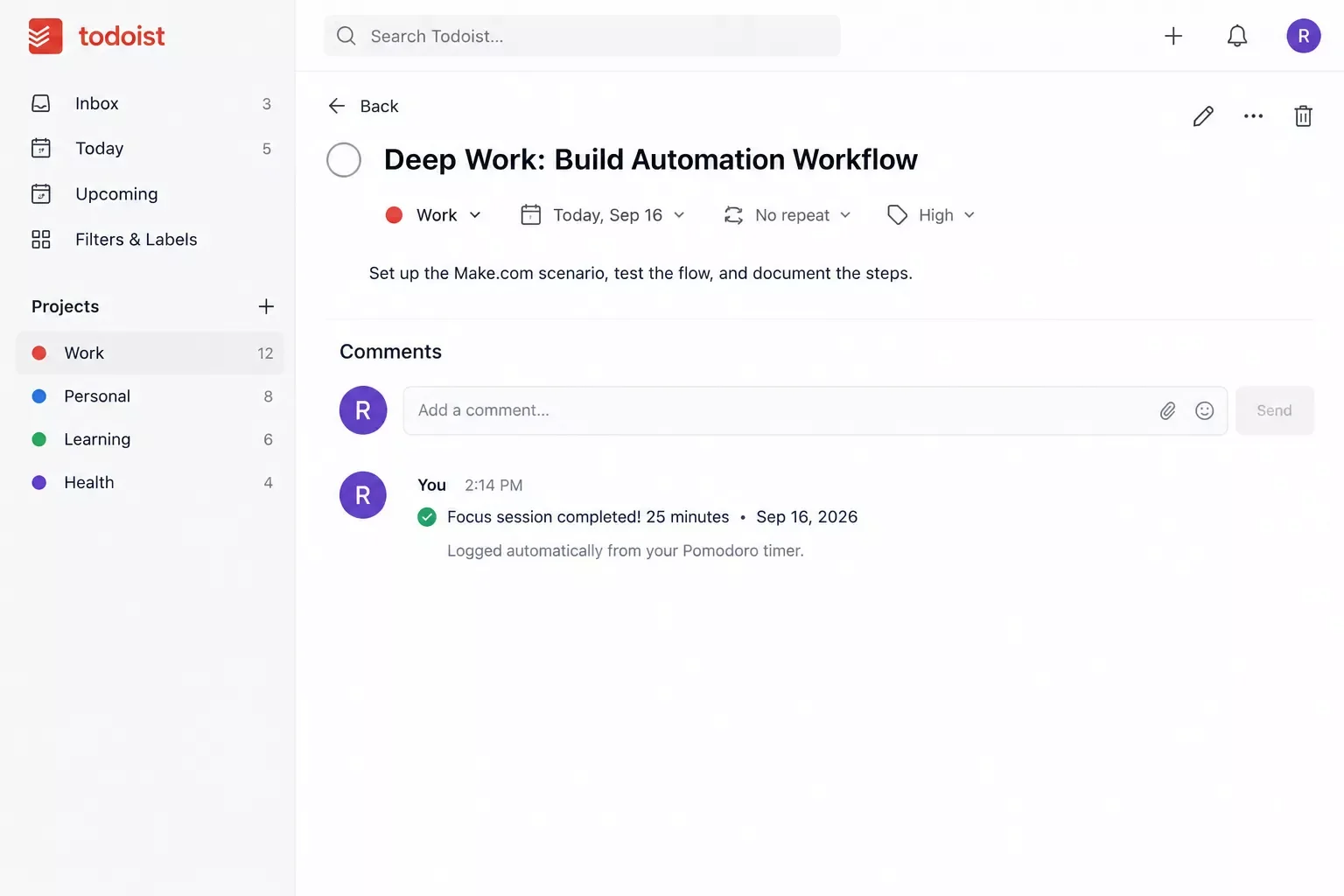
Some timers already log natively. Todoist's own integrations directory lists Paslen Focus Timer, which logs your pomodoros to a task's comments, and FocusFrog, which marks a task done in Todoist when you complete it in the app. If a native link covers what you need, skip Make.com. Reach for it when your timer has no native link to your task app, when you want the log somewhere else, or when you want to add your own details, like a client name.
How the Automation Works
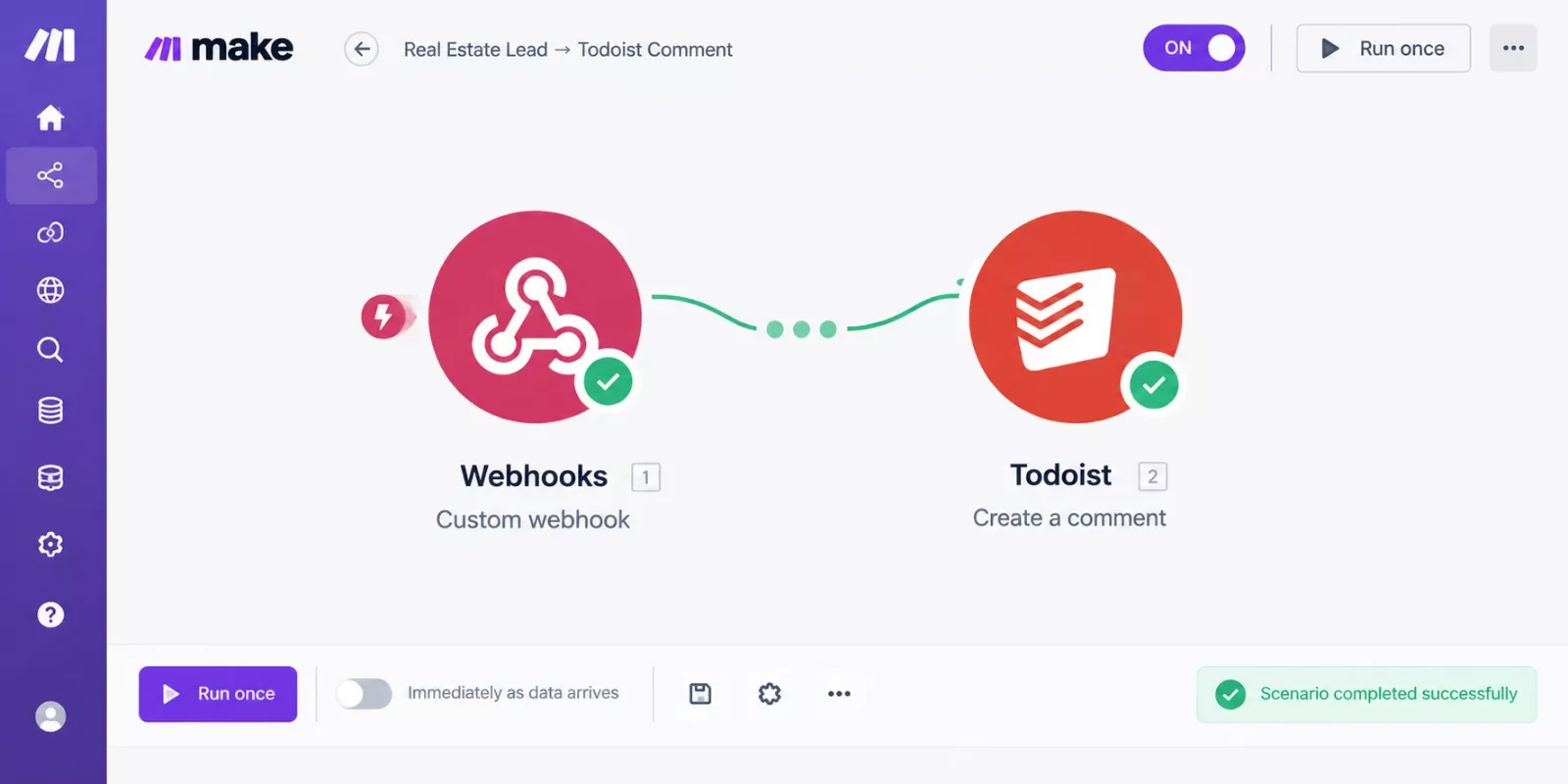
A session ends in your timer. The timer either saves a time entry that Make.com can watch, or calls a webhook, which is a web address Make.com listens to. A scenario picks it up and adds a comment to the matching Todoist task.
The Toggl Track path. Make.com's Toggl Track app is a Verified app, which means Make reviews and maintains it, and it includes a trigger for time entries that are created or updated. Whether each finished pomodoro lands as its own time entry depends on how you use Toggl's Pomodoro mode, so run one test session and check your Toggl entries before you build on it.
The TickTick path. TickTick's own Make.com app is also Make-maintained, with modules for creating, completing, and updating tasks. It has no trigger built specifically for a finished Pomodoro session, so the practical use is pairing a task you mark done right after a focus block with a Make.com scenario that logs it elsewhere. Treat it as task-based automation that happens to follow your sessions, not a dedicated session logger.
The webhook path. Make.com's Custom webhook module gives you a web address that accepts any data. Pomofocus lists a webhook integration on its paid tier, but its public feature list doesn't say which events it sends. Treat it as untested until a test session shows you what arrives.
⚠ Watch Out For: In the official pages I checked, Forest, Focus To-Do, Session, and Be Focused don't mention a webhook or a Make.com app. Session and Be Focused offer Apple Shortcuts instead. If your timer isn't on the paths above, don't plan around this section.
Setting It Up
- Create a new scenario in Make.com.
- Add your trigger. For Toggl Track, add a Toggl Track module for time entries and connect it with the API token from your Toggl profile settings. For the webhook path, add Webhooks > Custom webhook, click Add, and copy the web address Make.com generates.
- On the webhook path, paste that address into your timer's webhook setting and run one test session. Make.com uses that first request to learn the data structure.
- Add a Todoist module. "Create a comment" logs the session on a task, and "Close a task" ticks it off.
- Click Run once, look at the data that arrived, and map the session length and date into the comment. Then switch the scenario on.
Here's what it costs to run. Make.com's free plan includes 1,000 credits a month and two active scenarios, and scheduled scenarios on Free run no more often than every 15 minutes (figures as of September 2026, so confirm on Make's pricing page). A module run uses about one credit. On the webhook path, a two-module logger spends roughly two credits per session, or about 500 sessions a month. The Toggl Track path works differently. Make's own Toggl templates describe it as watching for new time entries at regular intervals, which is polling, and some pricing guides say polling checks can spend credits even when nothing new shows up. Also confirm that custom webhooks are available on your Make plan before you build the webhook path.
Want This Logger Wired to Your Exact Timer?
If your timer and task app aren't on the paths above, or you'd rather skip the setup, I build custom Make.com scenarios for solo businesses. Tell me what you use and we'll map it out.
Let's TalkPeople Also Ask
Is a 25-minute pomodoro right for everyone?
No. Francesco Cirillo, who created the technique, suggested 25 minutes, but one timer maker notes there's no evidence 25 minutes is best for everyone. Most apps let you change it. Toggl Track's Android app, for example, offers focus lengths from 10 to 90 minutes. Try 25 first, then adjust to your work.
Can a pomodoro timer connect to Todoist?
Yes, several can. Todoist's own directory lists FocusFrog and Paslen Focus Timer. Pomofocus can load your Todoist tasks on its paid tier. Connecting a timer to Todoist is different from logging sessions there automatically, which is what the Make.com section above covers.
How many pomodoros can you realistically do in a day?
There's no official number, and published guides disagree. Avotimer's guide suggests 4 to 8 for intermediate users, while Morgen's timer page says most people can sustain 8 to 12. Start at the lower end, track your count for a week, and raise it only if your focus holds through the afternoon.
How long is the break after four pomodoros?
After four pomodoros, you take a longer break. Guides commonly put it at 15 to 30 minutes. Session's own example uses 20 minutes, and Toggl Track's Android app lets you choose when the longer break starts, after 4, 6, or 8 rounds.
Pomodoro Timer FAQs for Solopreneurs
Will a pomodoro timer actually save me time?
It won't add hours to your day. What it does is make starting easier, because you only commit to 25 minutes, and it gives you a record of how many focused blocks you finished. For a solo worker with no manager, that record is often the most useful part.
How do I keep notifications from breaking a focus block?
Pick a timer that helps. Session can mute a Slack workspace during a session, and Reclaim's calendar app can sync your Slack status and turn on Do Not Disturb. You can also silence your phone and close your inbox before you start.
What if I'm in a flow state when the timer ends?
Keep going. Session's timer runs on in an overflow phase when time is up, and most apps let you set longer intervals, such as Toggl Track's 55 and 90 minute options on Android. The timer is there to protect your focus, not to interrupt it.
Do I need Make.com to use a pomodoro timer?
No. Every timer on this list works on its own. Add Make.com only when you want finished sessions logged automatically and your timer can send an event or call a webhook. Start with the simplest timer, then automate once the habit sticks.
What is the best free pomodoro timer app?
It depends what you need logged. Pomofocus and Forest's core timers are free with no signup. Toggl Track and Reclaim both include the timer in their free tiers. TickTick's free tier includes a Pomodoro option too, though some pricing guides say it needs Premium, so check the Settings screen in your own account first.
What's the difference between a pomodoro timer, time blocks, and focus sessions?
A pomodoro is a fixed 25-minute work interval followed by a short break, a specific technique. Time blocking is the broader habit of assigning tasks to chunks of your calendar, and a pomodoro is one way to fill a block. A focus session is the general term for any stretch of concentrated work, timed or not, so every pomodoro is a focus session, but not every focus session follows the pomodoro pattern.
Can a pomodoro timer automatically log my focus sessions?
Some can on their own. Todoist's directory lists timers like Paslen Focus Timer that log sessions natively. For the rest, Toggl Track and TickTick both have an official Make.com app you can build a scenario around, as the automation section above covers.
Pick One Pomodoro Timer and Run It for a Week
You don't need the fanciest app on this list. You need the one that matches how you actually work. If you bill by the hour, start with Toggl Track. If your phone eats your focus, try Forest. If you want a plain timer, open Pomofocus in a browser tab and give it five workdays. That's long enough to see whether the habit sticks. If it does, the record your timer builds becomes worth more than the timer itself, and you'll know exactly where your week went.
If you got this far, you probably want your focus blocks to leave a record without you typing anything in.
Here's a tip you can use today, no purchase needed. Before you automate anything, run your timer for one week and write down three things: which timer you use, which app holds your tasks, and where you'd like the log to land. That short list tells you whether a native link is enough or whether you need a scenario.
If you'd rather get that time back than spend a weekend wiring modules, the complete, done-for-you version of this logger is exactly what I build as a No-Code Architect, so solopreneurs don't have to. Tell me what you use through the SmartSoloFlow contact page and we'll map it out.
⚡ Pro Tip: Name each focus block before you start it. Type the client or task into the timer first, even if it's only three words. That one habit turns a stream of anonymous 25-minute blocks into a record you can bill from or review on Friday.
Want your timer to log itself?
SmartSoloFlow builds Make.com automation workflows for solo businesses, including custom session loggers matched to the timer and task app you already use. Contact SmartSoloFlow and tell us what you're working with.
Found this guide useful? Share it with a fellow freelancer who's still doing things manually. 🚀
Got a question or a workflow roadblock? Drop it in the comments below. Happy to help.
Last Updated: October 7, 2026

// Comments